
Tachiyomi for PC: How to Download, Install & Use It on Windows (2026 Guide)
If you love reading manga on your phone with Tachiyomi, you might have wondered — can I use it on my PC too? The answer is yes, absolutely.
There is no official Tachiyomi for PC or standalone Tachiyomi Windows app. But that does not mean you are stuck. You can run the Tachiyomi APK on your PC using a free Android emulator, and once it is set up, the experience is smooth, full-screen, and way more comfortable for long reading sessions.
This guide covers everything — from what Tachiyomi for PC actually means, to the best emulators to use, full step-by-step install instructions, system requirements, and even some great alternatives if you want to skip emulators entirely.
What Is Tachiyomi for PC?
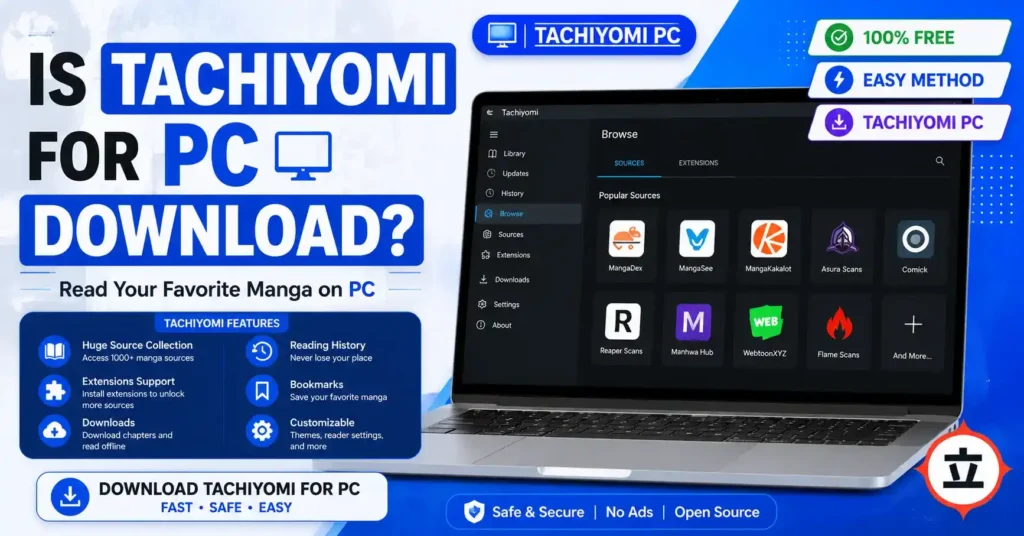
Tachiyomi is a free, open-source manga app made for Android. As one of the best open source manga apps available, it lets you read manga from hundreds of sources through a system called extensions. You can download chapters for offline reading, track your progress, customize your reading view, and much more — all without paying anything.
Tachiyomi for PC simply means running this Android app on your computer using an Android emulator. An emulator creates a virtual Android environment on your Windows machine, so any Android app can run inside it. People often search for “Tachiyomi Windows” or “Tachiyomi PC download” — both mean the same thing.
So when you read about “Tachiyomi PC download,” it really means: download an emulator, then install the Tachiyomi APK inside it.
Why Use Tachiyomi on PC?
Reading manga on a small phone screen is fine for short sessions. But if you are someone who reads for hours, a big monitor makes a huge difference. Here are the main reasons people switch to PC:
Bigger screen, better experience. Manga panels look amazing on a large monitor. You can see all the fine details, ink textures, and panel layouts that get lost on a phone.
No battery drain. Your phone battery is always at risk during long manga sessions. On a PC, you never have to worry about that.
Keyboard and mouse control. Navigating with arrow keys and a mouse is faster and more comfortable than constant touchscreen tapping.
No interruptions. No calls, no notifications popping up in the middle of a great chapter.
More storage. PCs typically have far more storage than phones, so you can download many more chapters for offline reading.
System Requirements for Tachiyomi for PC
Before installing Tachiyomi on Windows, make sure your PC can handle an Android emulator. Here are the recommended specs:
| Component | Minimum | Recommended |
|---|---|---|
| OS | Windows 10 (64-bit) | Windows 11 |
| Processor | Intel Core i3 / AMD equivalent | Intel Core i5 or better |
| RAM | 4 GB | 8 GB or more |
| Storage | 5 GB free space | 10 GB or more |
| GPU | Integrated graphics | NVIDIA GTX 1050 or better |
| Virtualization | Must be enabled in BIOS | Enabled |
Quick tip: If your PC is slow or older, go with LDPlayer or NoxPlayer. They are lighter on resources than BlueStacks.
Best Emulators for Tachiyomi on PC
Choosing the right emulator makes a big difference. Here is a simple breakdown:
BlueStacks — Best overall for most users. Easy to install, stable, and has a clean interface. Works great on modern PCs but can feel heavy on older or low-RAM systems.
LDPlayer — Best for speed and performance. It is lightweight, fast, and handles large manga chapter loads without lag. A great pick if you want smooth page flipping.
NoxPlayer — Best for older or low-spec computers. Uses less RAM and runs reliably even on older processors. Not the fastest, but very stable.
MEmu Play — Best for multi-tasking. Lets you run multiple Android windows at the same time, which is useful if you track multiple manga series.
GameLoop — Best if you also game on your PC. Originally built for gaming, it handles Tachiyomi well too.
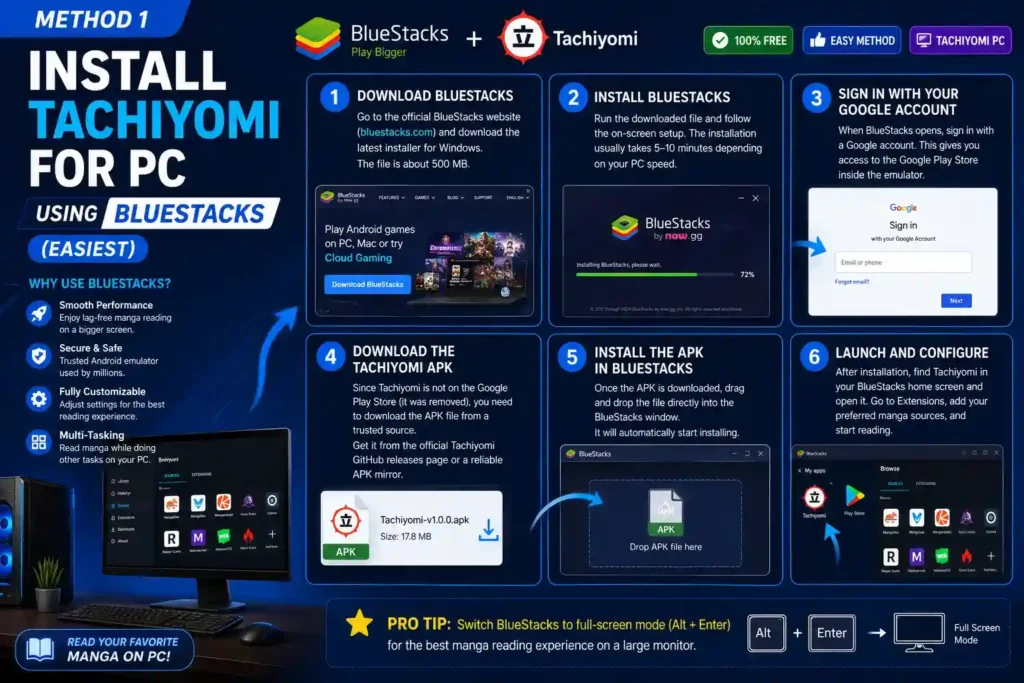
Method 1: Install Tachiyomi for PC Using BlueStacks (Easiest)
BlueStacks is the most popular Android emulator for BlueStacks manga reading and is the easiest way to get Tachiyomi for PC running. Here is how to install Tachiyomi using it:
Step 1: Download BlueStacks Go to the official BlueStacks website (bluestacks.com) and download the latest installer for Windows. The file is about 500 MB.
Step 2: Install BlueStacks Run the downloaded file and follow the on-screen setup. The installation usually takes 5–10 minutes depending on your PC speed.
Step 3: Sign In with Your Google Account When BlueStacks opens, sign in with a Google account. This gives you access to the Google Play Store inside the emulator.
Step 4: Download the Tachiyomi APK Since Tachiyomi is not on the Google Play Store (it was removed), you need to download the APK file from a trusted source. Get it from the official Tachiyomi GitHub releases page or a reliable APK mirror.
Step 5: Install the APK in BlueStacks Once the APK is downloaded, drag and drop the file directly into the BlueStacks window. It will automatically start installing.
Step 6: Launch and Configure After installation, find Tachiyomi in your BlueStacks home screen and open it. Go to Extensions, add your preferred manga sources, and start reading.
Pro tip: Switch BlueStacks to full-screen mode (Alt + Enter) for the best manga reading experience on a large monitor.
Method 2: Install Tachiyomi on PC Using LDPlayer (Fastest)
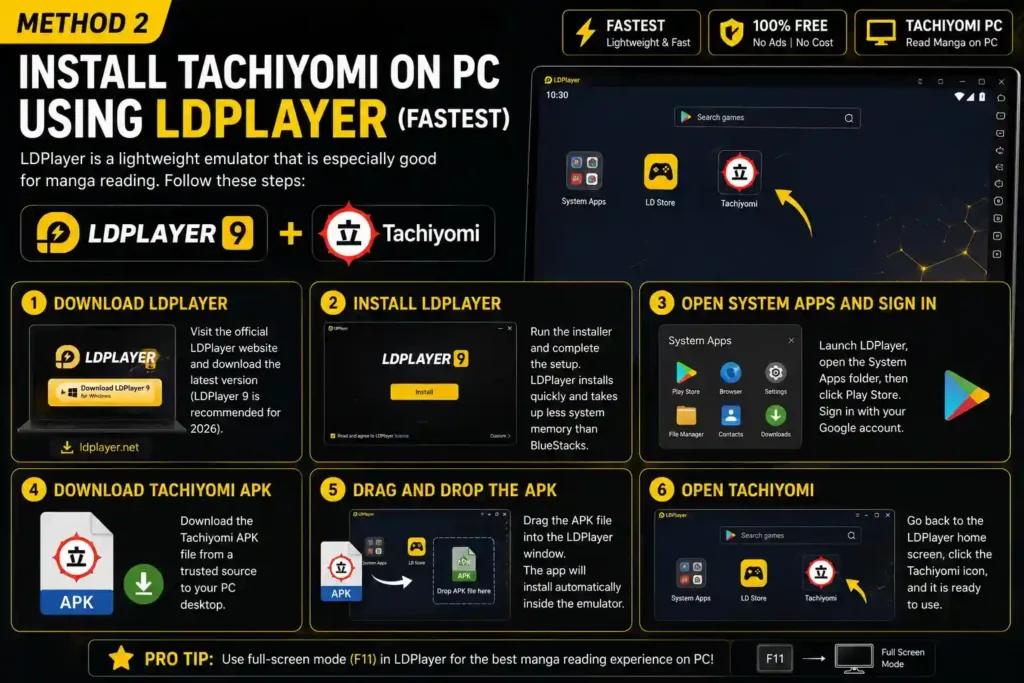
LDPlayer is a lightweight emulator that is especially good for manga reading. Follow these steps:
Step 1: Download LDPlayer Visit the official LDPlayer website and download the latest version (LDPlayer 9 is recommended for 2026).
Step 2: Install LDPlayer Run the installer and complete the setup. LDPlayer installs quickly and takes up less system memory than BlueStacks.
Step 3: Open System Apps and Sign In Launch LDPlayer, open the System Apps folder, then click Play Store. Sign in with your Google account.
Step 4: Download Tachiyomi APK Download the Tachiyomi APK file from a trusted source to your PC desktop.
Step 5: Drag and Drop the APK Drag the APK file into the LDPlayer window. The app will install automatically inside the emulator.
Step 6: Open Tachiyomi Go back to the LDPlayer home screen, click the Tachiyomi icon, and it is ready to use.
Method 3: Install Tachiyomi for PC Using NoxPlayer (Best for Low-End PCs)
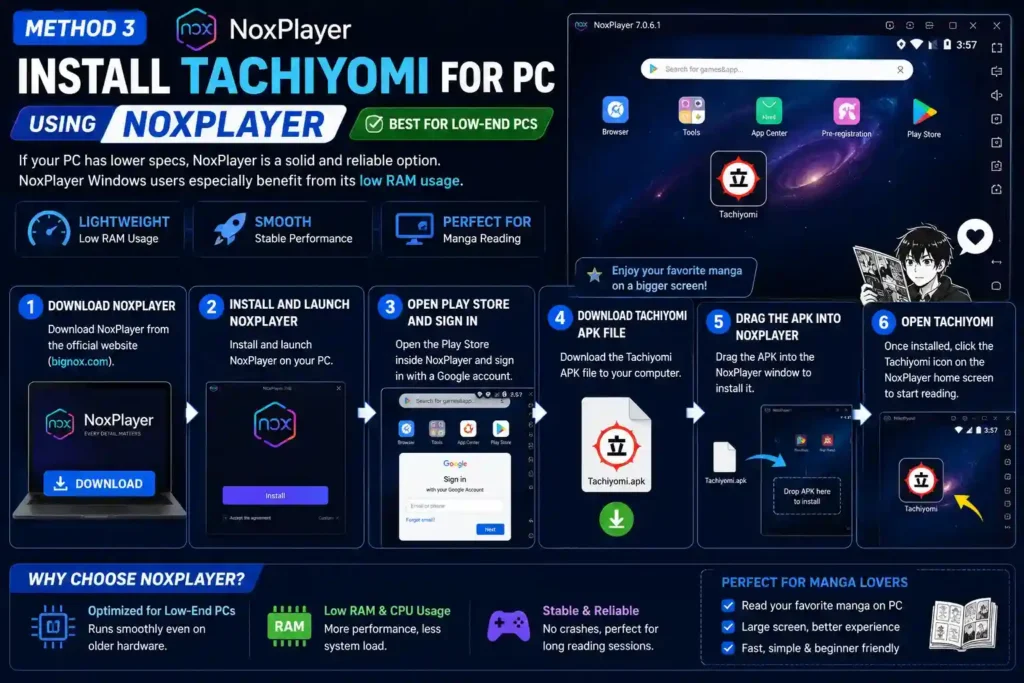
If your PC has lower specs, NoxPlayer on Windows is a solid and reliable option. NoxPlayer Windows users especially benefit from its low RAM usage.
Step 1: Download NoxPlayer from the official website (bignox.com).
Step 2: Install and launch NoxPlayer on your PC.
Step 3: Open the Play Store inside NoxPlayer and sign in with a Google account.
Step 4: Download the Tachiyomi APK file to your computer.
Step 5: Drag the APK into the NoxPlayer window to install it.
Step 6: Once installed, click the Tachiyomi icon on the NoxPlayer home screen to start reading.
Tachiyomi Android vs Tachiyomi on PC: Key Differences
| Feature | Android App | PC via Emulator |
|---|---|---|
| Installation | Direct APK install | Needs emulator first |
| Screen size | Small (phone screen) | Large (monitor) |
| Controls | Touch gestures | Keyboard and mouse |
| Battery | Drains phone battery | No battery issue |
| Storage | Limited by phone | Limited only by your hard drive |
| Performance | Optimized for mobile | Depends on PC hardware |
| Portability | Read anywhere | Desktop/laptop only |
How to Add Extensions in Tachiyomi on PC
Extensions are what make Tachiyomi so powerful. They let you connect to hundreds of manga sources. Here is how to add them on PC:
- Open Tachiyomi inside your emulator.
- Go to the Browse tab at the bottom.
- Tap Extensions at the top.
- Search for your preferred manga source (like MangaDex, MangaHere, etc.).
- Tap the download icon next to the extension.
- Once installed, go to Sources and start browsing.
Popular extensions include MangaDex, MangaHere, MangaKakalot, Webtoons, and many more.
How to Read Manga Offline on Tachiyomi PC
One of the best features of Tachiyomi is offline reading. Here is how to save chapters:
- Open the manga you want to download.
- Tap on a chapter to open it, or long-press to get options.
- Select Download to save the chapter to your device (or emulator storage).
- Downloaded chapters are accessible even without internet.
This is great if you want to read during travel or in areas with slow internet.
Sync Your Manga Library Across Devices
You can keep your reading progress synced between your phone and PC using backup files:
- On your phone: Go to Settings > Data and Storage > Create Backup.
- Save the backup file to Google Drive or your computer.
- On PC (inside the emulator): Go to the same settings menu and Restore Backup.
This way, your reading progress, library, and settings stay in sync across both devices.
No-Emulator Alternatives: Use Tachiyomi-Style Apps Directly on PC
If installing an emulator feels like too much hassle, there are desktop apps that work in a similar way to Tachiyomi:
Tachidesk (now called Suwayomi-Server) — This is a browser-based version of the Tachiyomi experience. It runs as a local server on your PC, and you access it through any browser. No emulator needed. It supports Tachiyomi extensions and works on Windows, Mac, and Linux.
mihon manga— The most popular spiritual successor to Tachiyomi. It is an Android-only app for now, but it works perfectly inside any Android emulator. If you loved Tachiyomi, Mihon will feel completely familiar.
HakuNeko — A native desktop manga downloader for Windows, Mac, and Linux. It does not need an emulator at all and supports many of the same sources as Tachiyomi.
Kavita — A self-hosted manga and book server that you install on your PC. Great for reading your own downloaded manga collection with a clean library interface.
Common Problems and Quick Fixes
Emulator is slow or laggy Go to your emulator settings and increase the allocated RAM (at least 4 GB) and CPU cores (2 or more). Also make sure virtualization (VT-x or AMD-V) is enabled in your BIOS.
Tachiyomi APK not installing Make sure you downloaded the correct APK format. Tachiyomi uses a standard .apk file. Also check that the emulator is running Android 8.0 or higher.
Extensions not loading Some sources may be temporarily down. Try refreshing or switching to a different extension. You can also check if the extension needs updating inside the app.
Black screen when opening Tachiyomi Try restarting the emulator. If the issue continues, uninstall and reinstall the Tachiyomi APK inside the emulator.
Is Tachiyomi Safe to Use on PC?
Tachiyomi itself is completely safe. It is a free, open-source application with its code publicly available on GitHub. It does not collect your personal data, does not show ads, and does not require any account to use.
The key thing to be careful about is where you download the APK from. Always get it from the official Tachiyomi GitHub page or a trusted source. Avoid random APK sites that could bundle malware with the file.
Similarly, download your emulator (BlueStacks, LDPlayer, NoxPlayer) only from their official websites.
Final Thoughts
Tachiyomi for PC is a great setup for anyone who loves reading manga for long periods. Whether you call it Tachiyomi Windows or Tachiyomi on PC, the setup is the same — and the bigger screen, keyboard control, and no battery stress make it a significantly better experience than mobile for extended reading.
Setting up Tachiyomi for PC takes maybe 15–20 minutes from start to finish. Choose an emulator that matches your PC specs — BlueStacks if you have a newer computer, LDPlayer for speed, or NoxPlayer for older systems. Download the Tachiyomi APK from a safe source, install it inside the emulator, add your extensions, and you are ready.
If you want to skip emulators entirely, Tachidesk gives you a browser-based experience that is surprisingly close to the real thing.
Happy reading.